You can activate your Sonnox licence on an iLok Cloud session, a local machine (computer), or a physical iLok USB key (2nd or 3rd Gen)
If you want to switch where your licence is activated, you’ll need to deactivate it first, then reactivate it in the new location.
Step 1: Open iLok Licence Manager
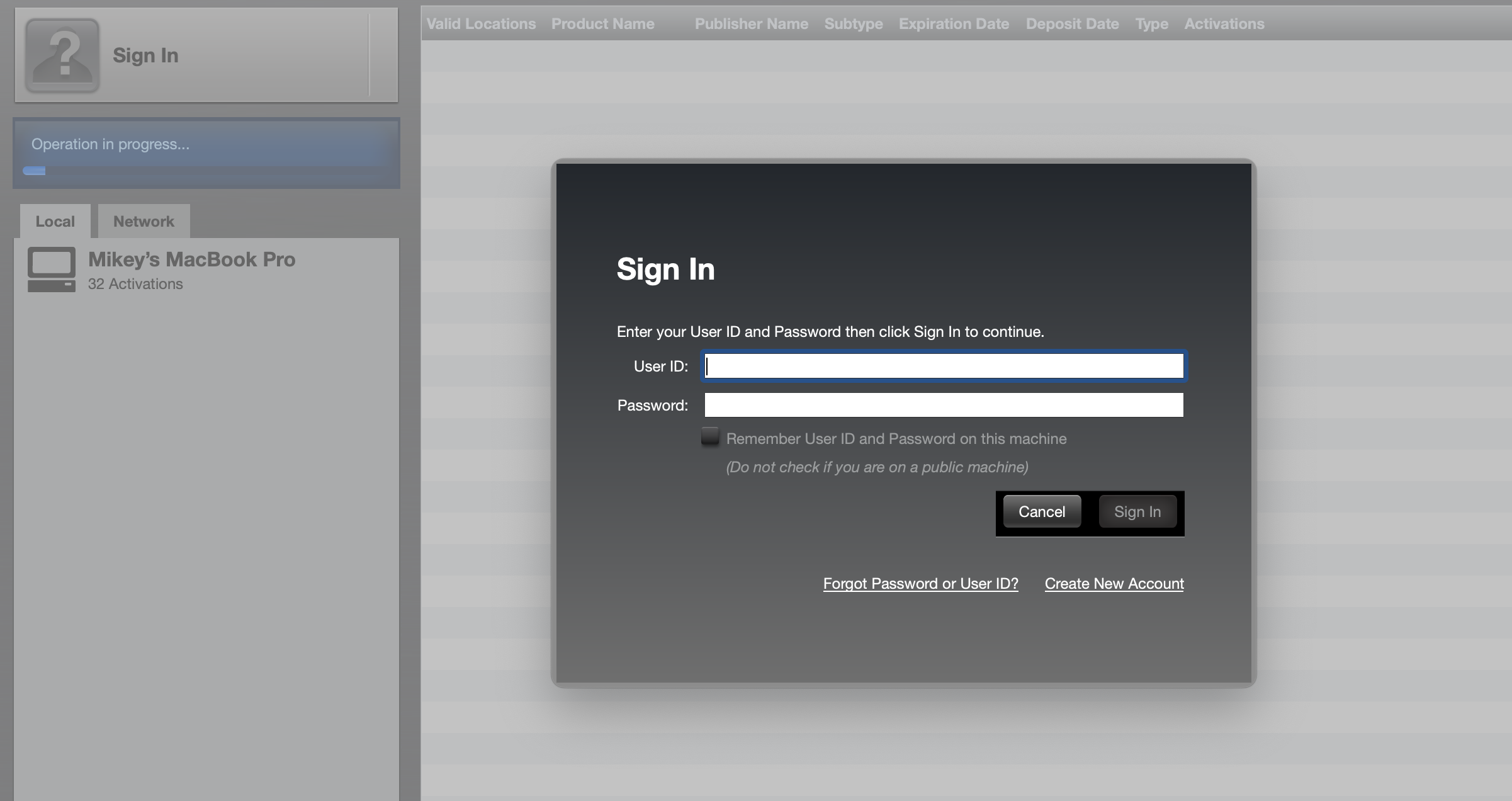
Launch the iLok License Manager application on your computer.
Sign in using your iLok User ID and password.
Step 2: Locate Your Sonnox Licence
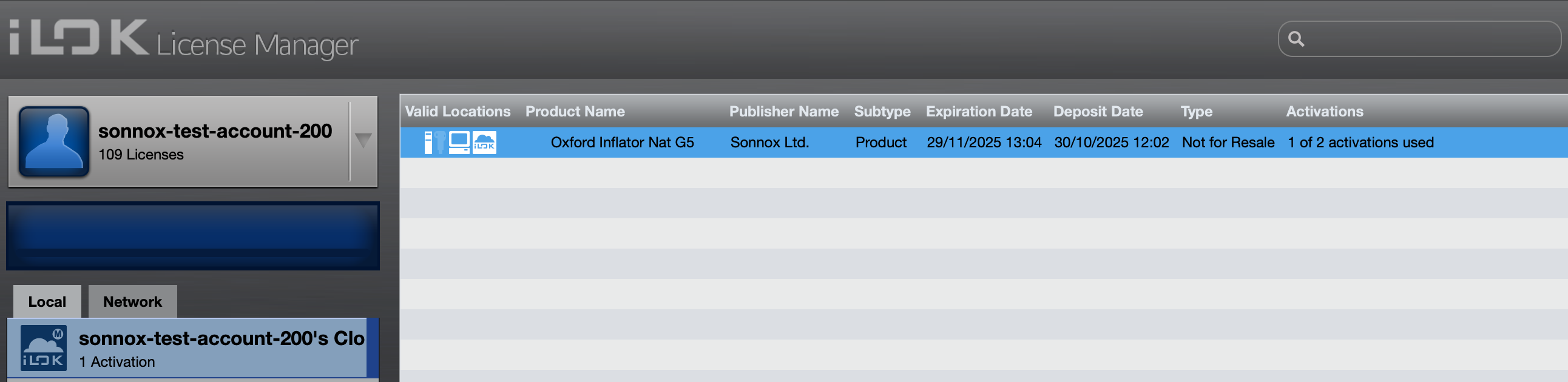
In the left-hand panel, select your current activation location (Cloud, local computer, or iLok USB).
Find your Sonnox licence in the main list.
Step 3: Deactivate the Licence
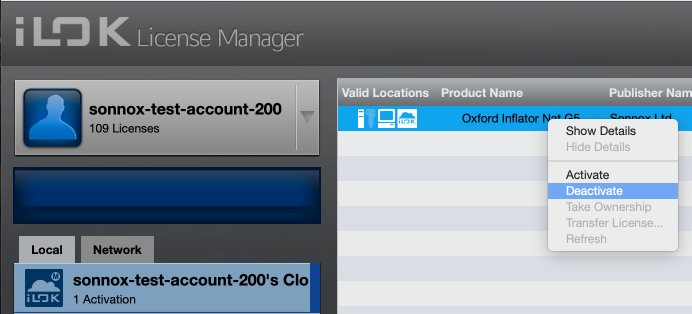
Right-click the licence and choose Deactivate.
Wait a few moments for the deactivation to complete.
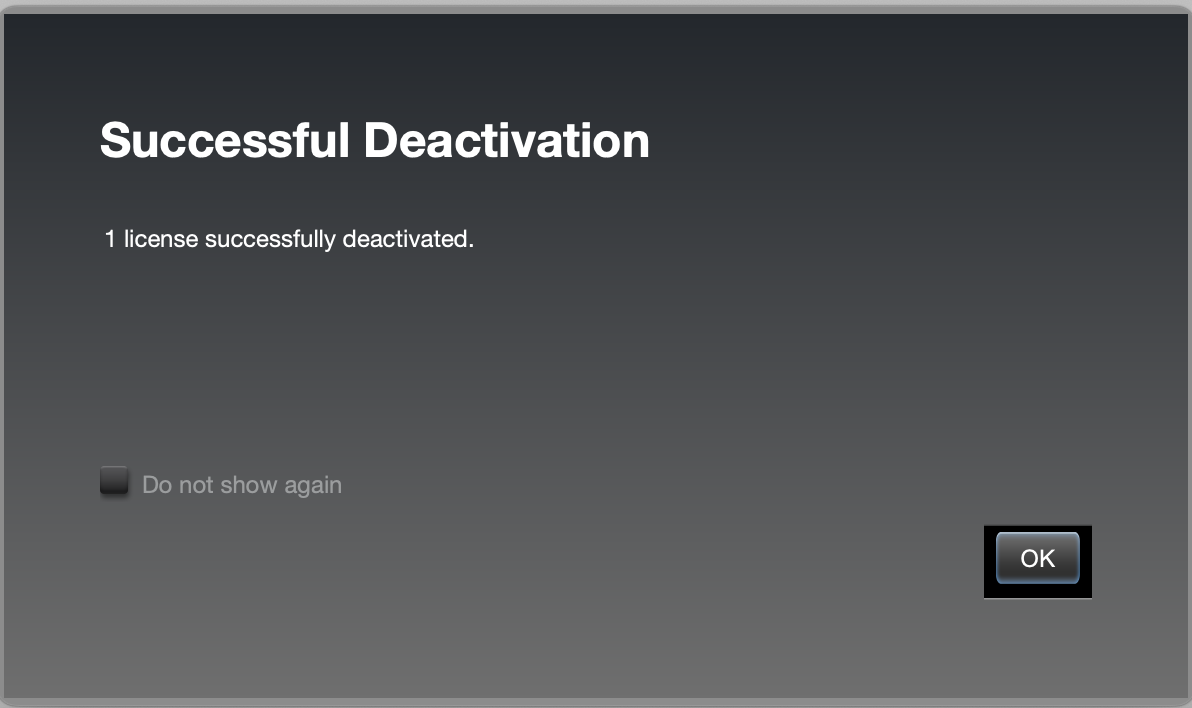
Your licence will now appear in the “Available Licences” section of your account, ready to be reactivated elsewhere.
Step 4: Reactivate to a New Location
You can now reactivate your licence to one of the following locations:
Activate to a Local Machine
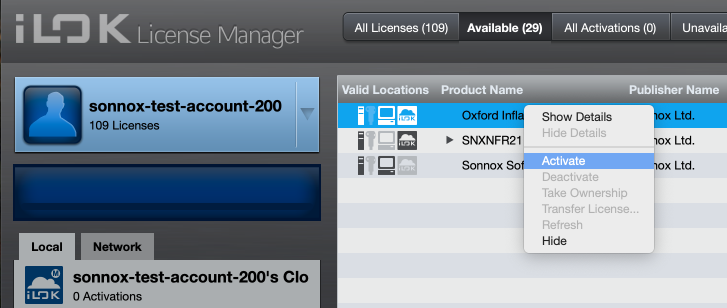
In iLok License Manager, right-click the licence and choose Activate.
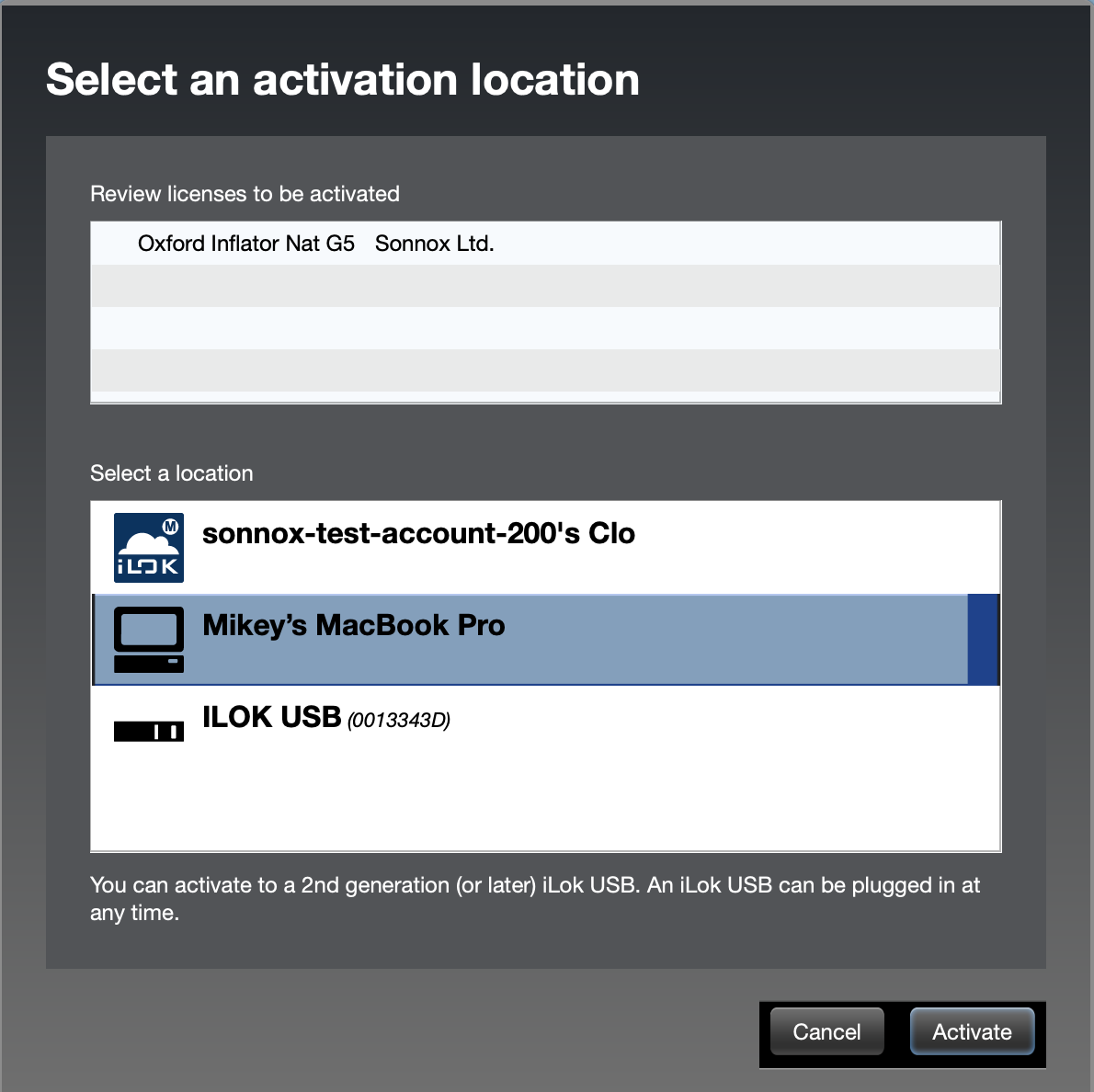
Select your computer name as the activation location.
Activate to an iLok USB Key
Connect your iLok USB to your computer.
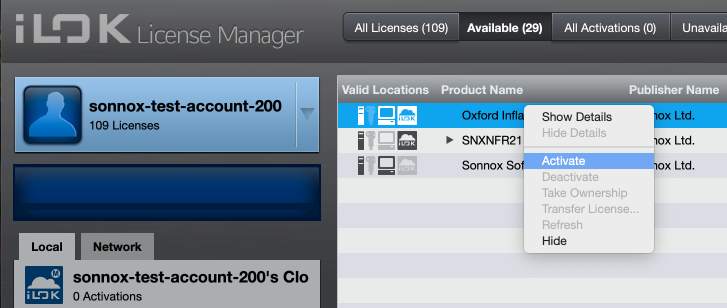
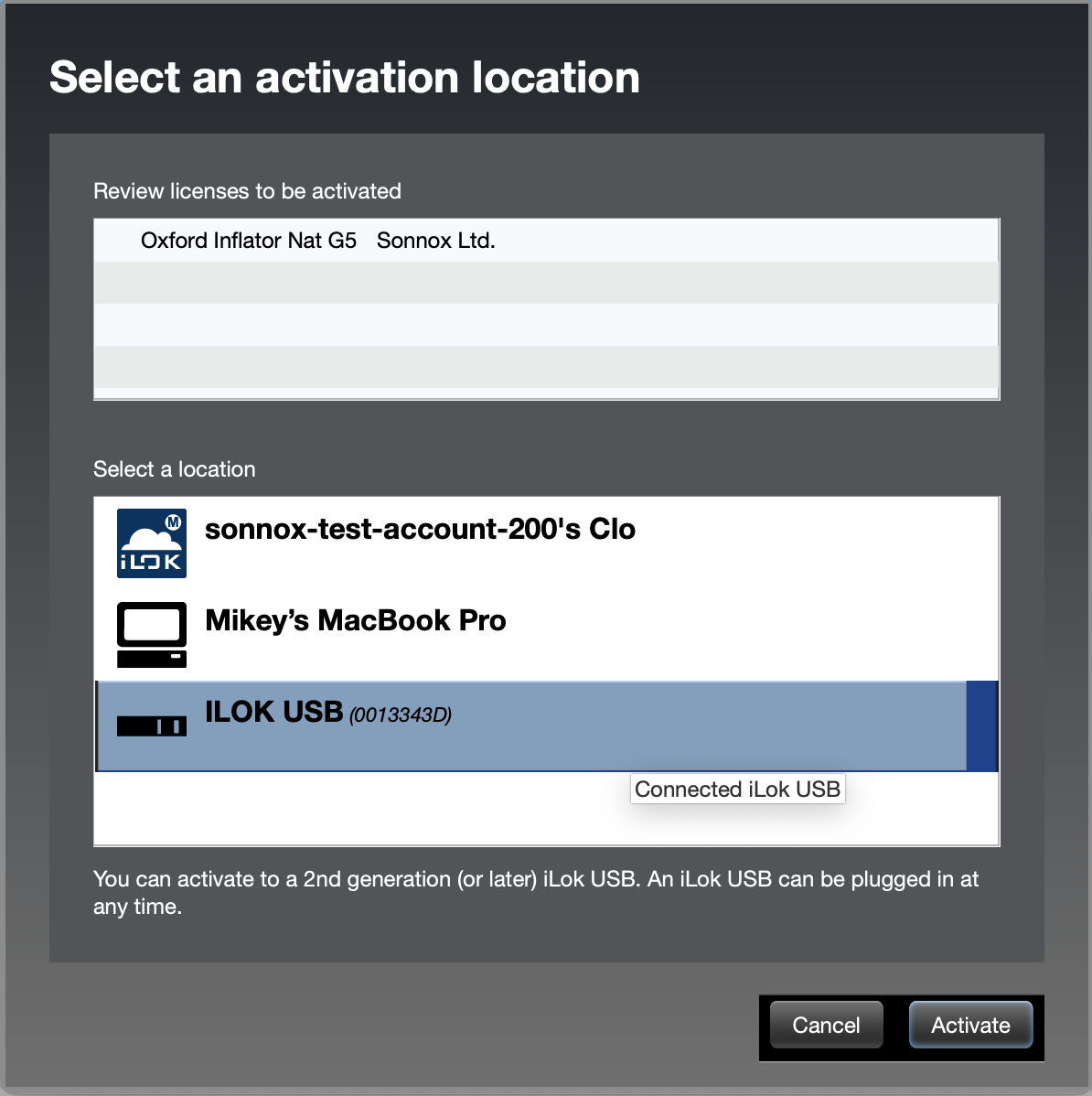
In iLok License Manager, right-click the licence - Activate - select your iLok USB.
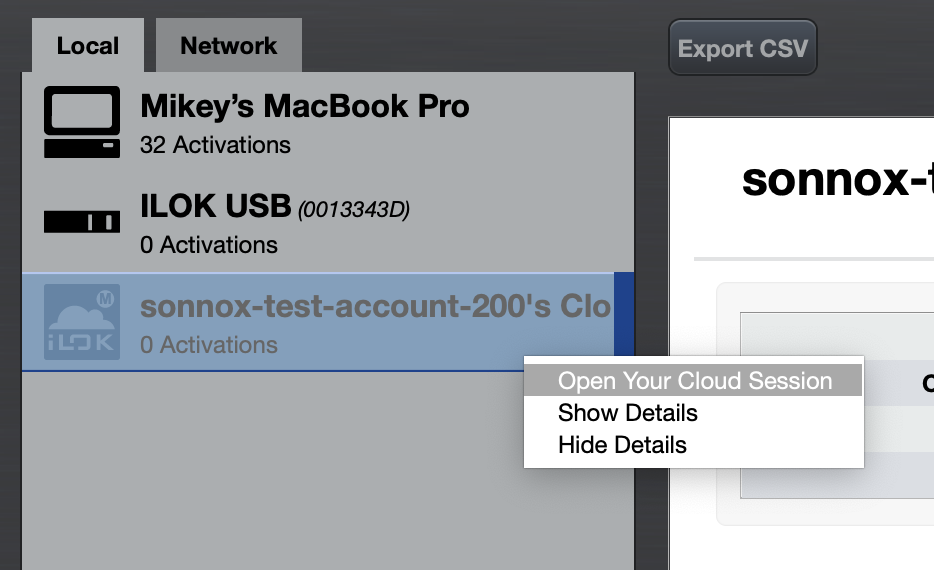
Activate to iLok Cloud
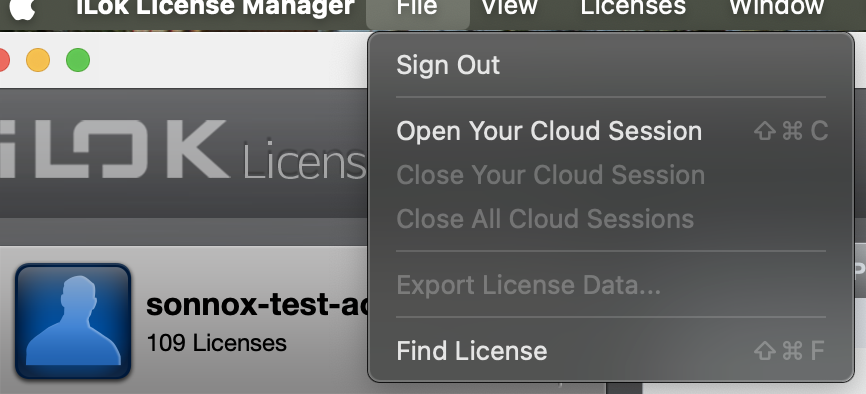
From the menu bar, go to File → Open Cloud Session.
Sign in to your iLok account if prompted.
Your licences will automatically appear in your active Cloud session.
Important: iLok Cloud Limits
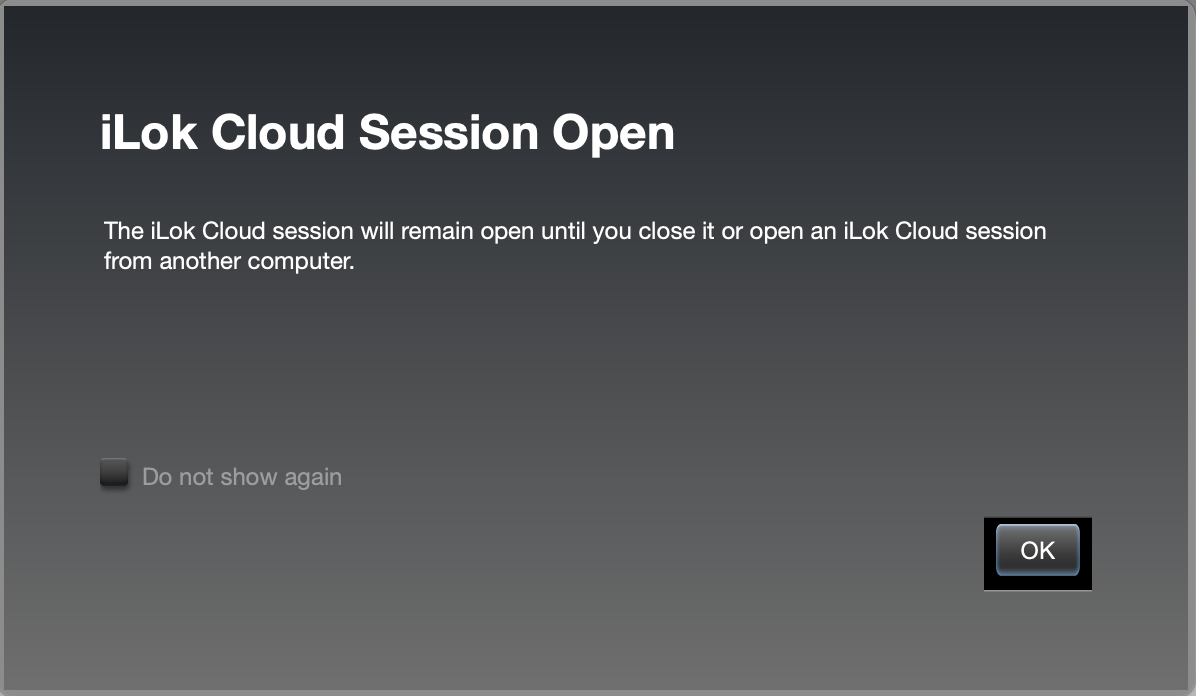
*You can only have one active Cloud Session per iLok account.
*If you try to open a Cloud Session on another computer, you’ll be prompted to close the current session first.
*Cloud-activated licences require an internet connection at all times.
A comprehensive guide to using iLok Cloud authorisation can be found here - How to Use iLok Cloud Authorisation